Documents
Snappy comes with a built-in document storage that provides a way to manage and use any kind of file, be it images, videos or PDFs. It includes a variety of settings that can be used to customize its behavior so it can be shaped to match the customer in question.
The document browser can be viewed in via the Documents menu and shows a way to create folders and upload files.
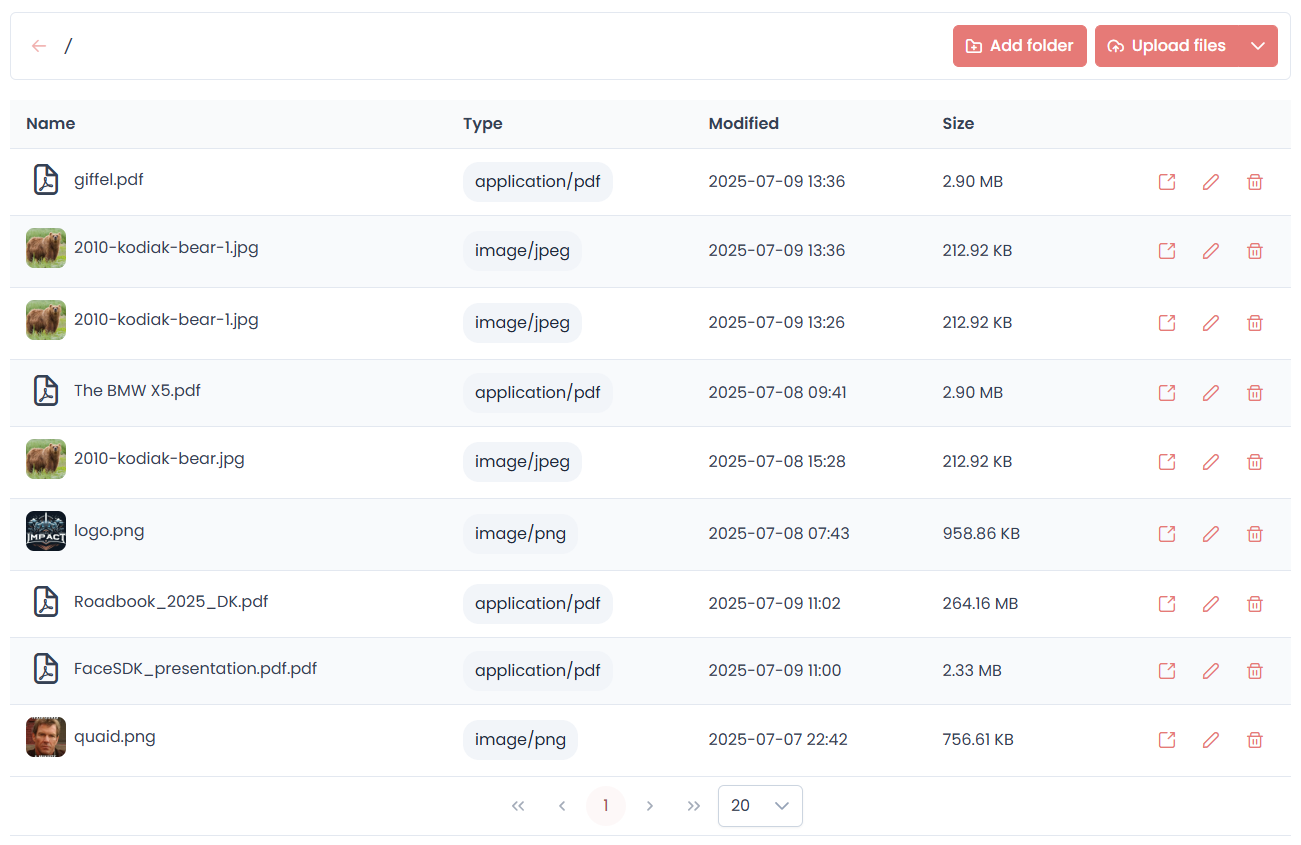
File-like system
The document browser provides a standard file system-like view with some key differences to note:
- Every document can be placed in multiple folders.
- The root path, known as
/is a kind of dump where all files with placed in no folders are listed. - Deleting a folder does not delete its documents, it simply removes the folder association for those documents
Documents API
The document storage comes with an associated API that can be used to manage documents from your code. The various
tasks it can do are available in the docsApi import.
Uploading
import { docsApi } from "@snpy";

docsApi.upload({
    multiple: true,
    accept: ["application/pdf"],
    embed: true,
    addToFolders: ["/pdfs"]
})
This example prompts the user for one or more PDFs and does the following:
- Uploads files to the document storage
- Places them in the
/pdfsfolder - Embeds them into the LLM store so they can be queried
Summarizing
Documents that are indexed by our LLM can be queried for structured output with the summarize method
using schemas defined with Zod.
import { docsApi } from "@snpy";
import { z } from 'zod/v4';

const schema = z.object({
    car_make: z.string(),
    car_model: z.string(),
    top_speed_kmh: z.number()
});

const result = await docsApi.summarize("<doc_id>", "Give me the car make, model and top speed.", schema);

console.log(result);
/*
{
    "car_make": "BMW",
    "car_model": "X5",
    "max_speed_kmh": 243
}
*/
This example shows querying a PDF brochure for the BMW X5, returning a few details described as JSON object.
Querying
Similar to summarizing, you can also query documents via the LLM for text.
import { docsApi } from "@snpy";

const result = await docsApi.query("<doc_id>", "Give me a one-paragraph summary.");

console.log(result);
/*
A brochure describing the BMW X5.
*/
This example shows querying a PDF brochure for the BMW X5, returning a text summary of its contents.
Selecting
If you need to prompt the user to select a document from the store, you can call the select method:
import { docsApi } from "@snpy";

const selectedDoc = await docsApi.select({
    mimeTypes: ["image/jpeg"],
    cwd: ["/images"]
});
This example returns the document bob (or null) from browsing the /images dir, only showing JPEG files.